New Android phone setup is an important process that ensures your device is properly configured for security, performance, and usability. When you buy a new smartphone, setting it up correctly helps you avoid future problems and improves overall experience.
Table of Contents
New Android Phone Setup Step by Step Guide
📦🔓 Step 1: Unboxing Your New Android Phone
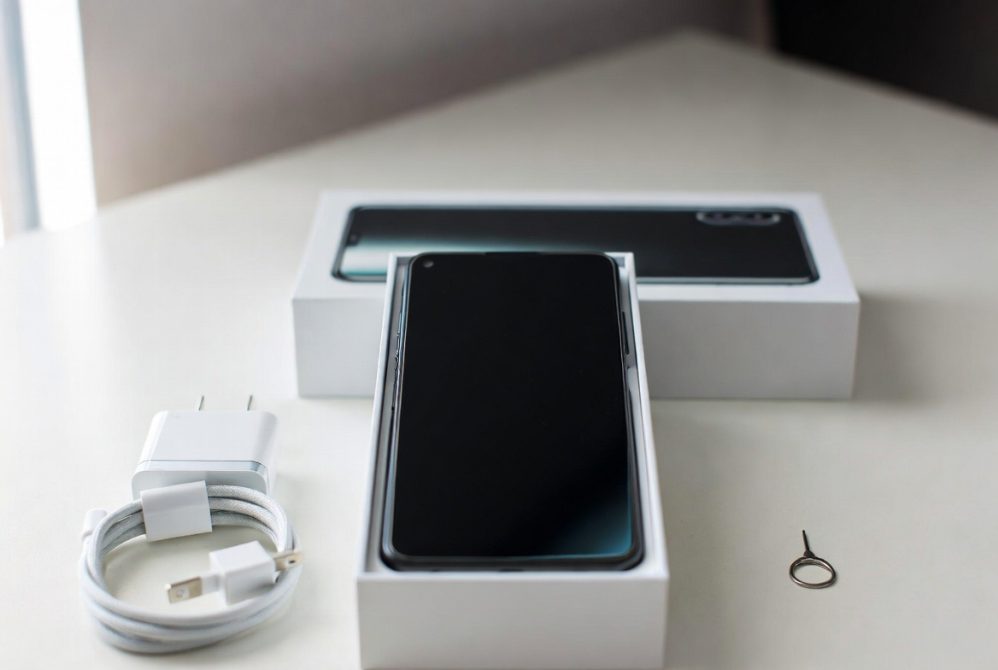
When you open a new smartphone box (Samsung, Xiaomi, OnePlus, etc.), the first step is proper inspection and preparation.
📌✔ Bullet Point: Check Box Contents:
🔹 What is included in the box:
- Smartphone device
- Charging cable and adapter
- SIM ejector tool
- User manual
- Warranty card
📘 Detailed Explanation:
This step ensures that your device is complete and not missing any essential accessories.
Every item in the box plays an important role in setup. The charger ensures safe first-time charging, while the SIM tool is required for network activation.
Checking everything early prevents future issues like missing accessories or compatibility problems.
It also helps you verify product authenticity before proceeding with setup.
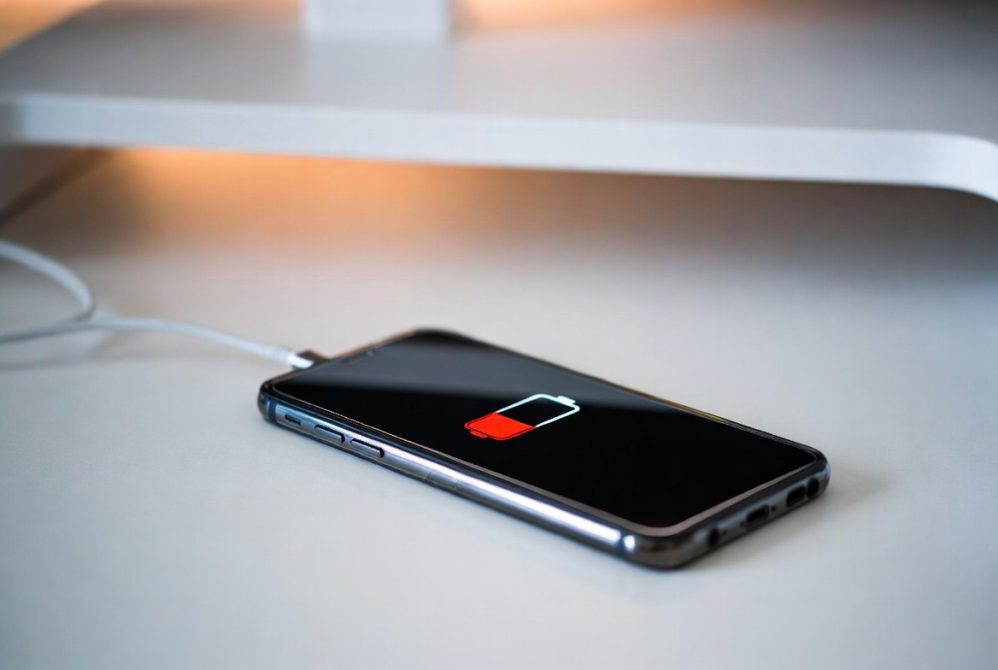
🔋⚡ Step 2: New Android Phone Charging Setup
Battery preparation is extremely important for smooth setup and performance stability.
📌✔ Bullet Point: First Charging Practices:
- Charge phone up to 40–60% before setup
- Use only original charger
- Avoid fast draining during setup
📘 Detailed Explanation:
Modern lithium-ion batteries do not require full 100% charging before first use.
Charging between 40% and 60% ensures battery health optimization and prevents overheating.
Using non-original chargers can damage internal circuits or reduce battery lifespan.
During setup, phone consumes more power due to background syncing and updates, so proper charging is essential.
📲📡 Step 3: Insert SIM Card Properly
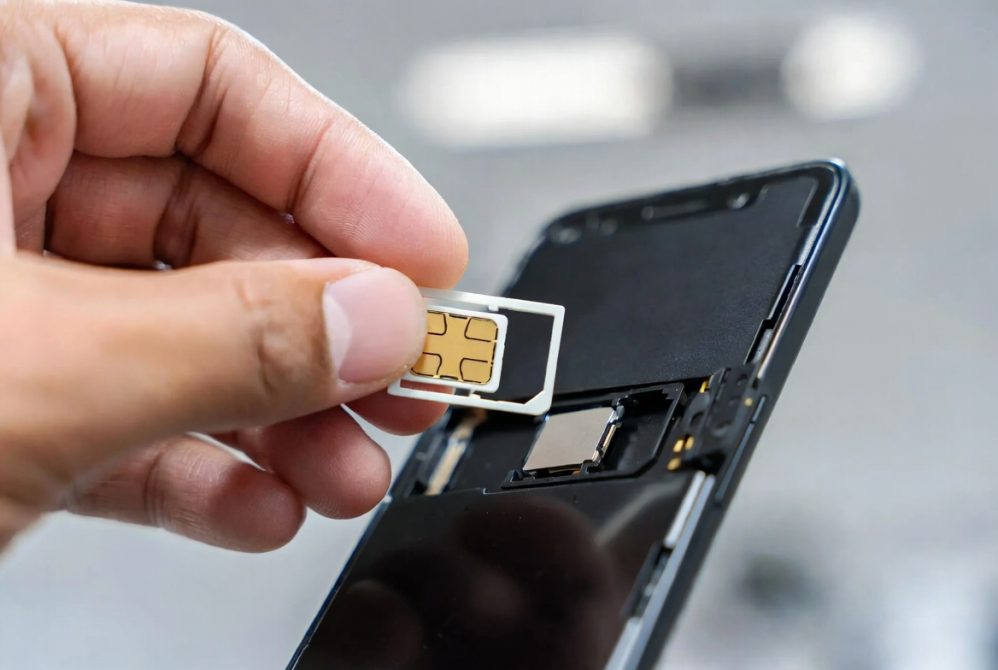
SIM installation activates mobile network services.
📌✔ Bullet Point: SIM Setup Process:
- Use SIM ejector tool carefully
- Insert SIM into correct slot
- Ensure proper alignment
📘 Detailed Explanation:
Incorrect SIM placement can lead to no network or SIM detection errors.
Dual SIM phones allow multiple numbers, which is useful for business and personal use.
Proper alignment ensures stable connectivity for calls, SMS, and mobile data.
This step is crucial for activating carrier services like AT&T, T-Mobile, Vodafone, or local operators.
🌐📶 Step 4: Connect to WiFi Network
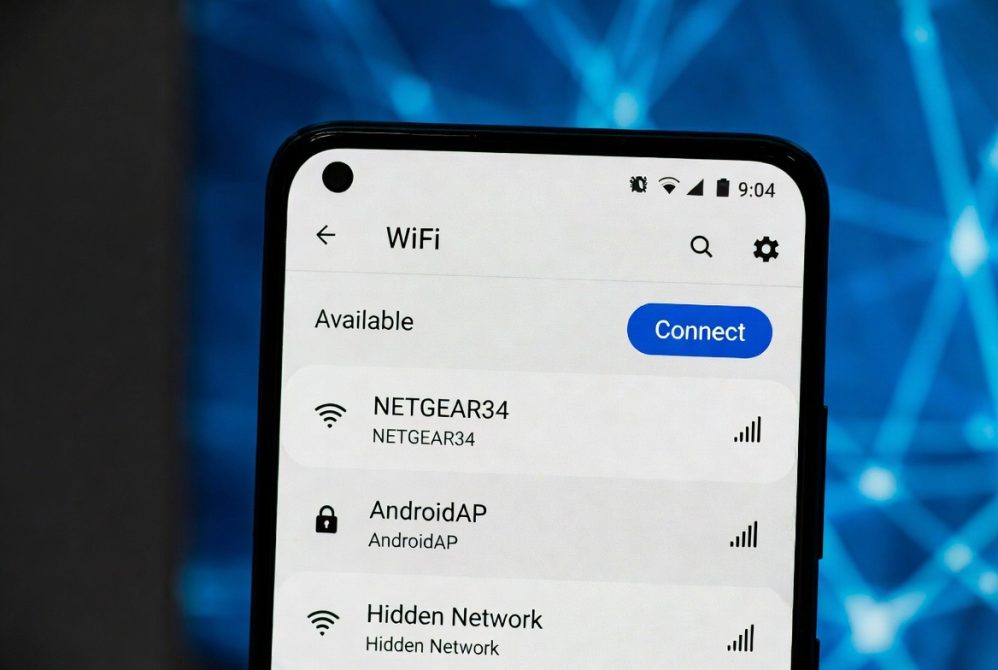
Internet connection is required for full Android activation.
📌✔ Bullet Point: WiFi Setup Importance:
- Connect to secure WiFi network
- Avoid public unsecured WiFi
- Use strong password networks
📘 Detailed Explanation:
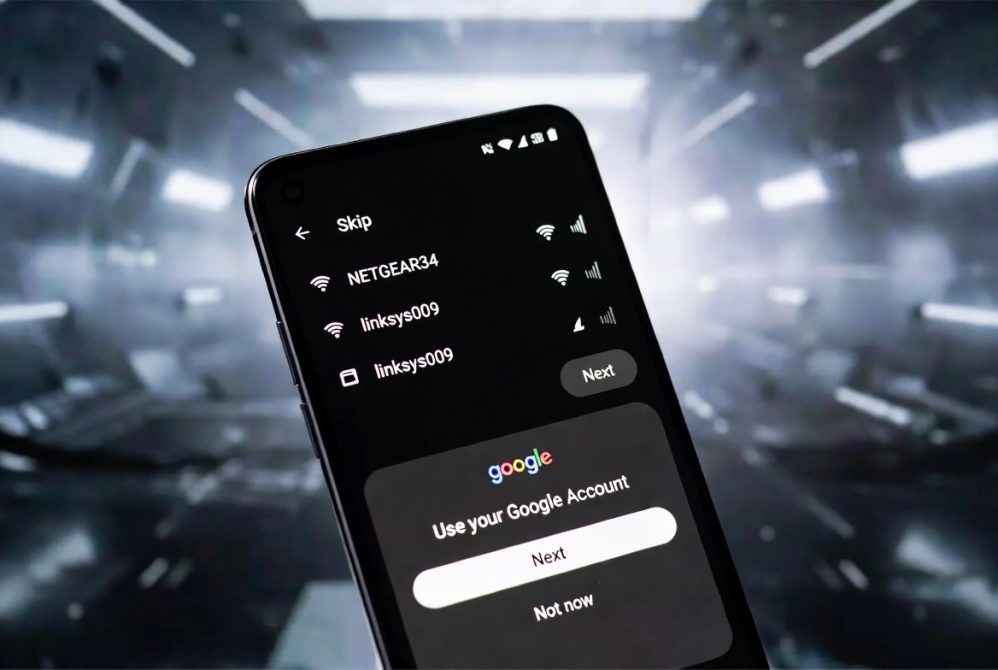
WiFi allows your device to sync with cloud services, download updates, and verify Google account login.
Secure WiFi protects your personal data during setup.
Public networks can expose your device to security risks like data interception.
A stable internet connection also speeds up the setup process significantly.
🔐📧 Step 5: Google Account Login Setup
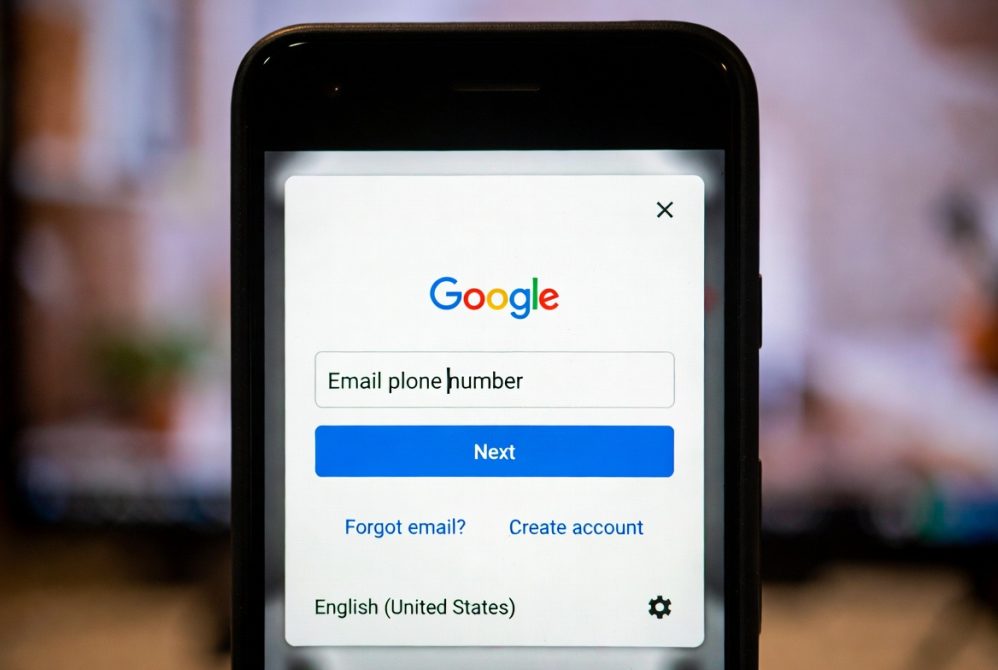
Android devices rely heavily on Google services.
📌✔ Bullet Point: Google Account Setup:
- Sign in with Gmail
- Create account if needed
- Enable sync options
📘 Detailed Explanation:
Your Google account is the core of your Android ecosystem.
It stores contacts, photos, apps, and backups securely in the cloud.
Without it, you cannot access Play Store or backup features.
It also enables device tracking and recovery through security tools.
🔄📂 Step 6: Restore Data from Old Device
This step helps transfer your previous smartphone data.
📌✔ Bullet Point: Data Transfer Options:
- Google backup restore
- Wireless transfer tool
- Cable transfer method
📘 Detailed Explanation:
Data transfer ensures continuity between old and new devices.
It includes contacts, messages, apps, photos, and settings.
Wireless transfer is faster and more convenient for modern users.
Proper transfer reduces manual setup time and improves user experience.
🔒🛡 Step 7: Set Up Security Lock System
Security is one of the most important parts of Android setup.
📌✔ Bullet Point: Security Options:
- PIN code
- Pattern lock
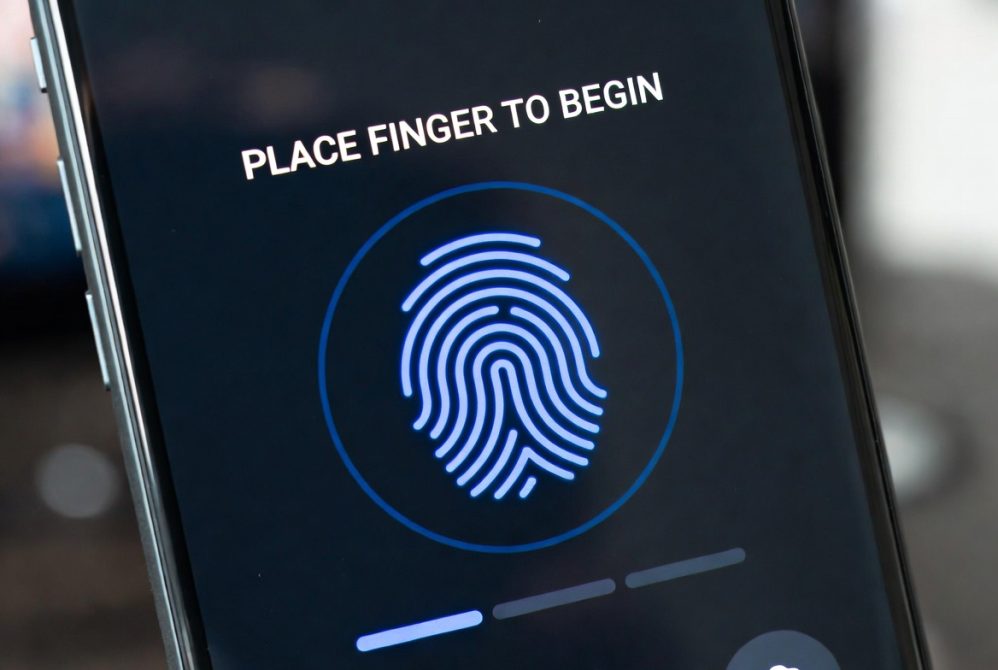
- Fingerprint sensor
- Face unlock
📘 Detailed Explanation:
Security locks protect your personal and financial data.
Fingerprint is the fastest and most secure option for daily use.
Face unlock provides convenience but may vary by device quality.
Using a combination of PIN and biometric security is recommended.
☁️📲 Step 8: Enable Backup & Sync
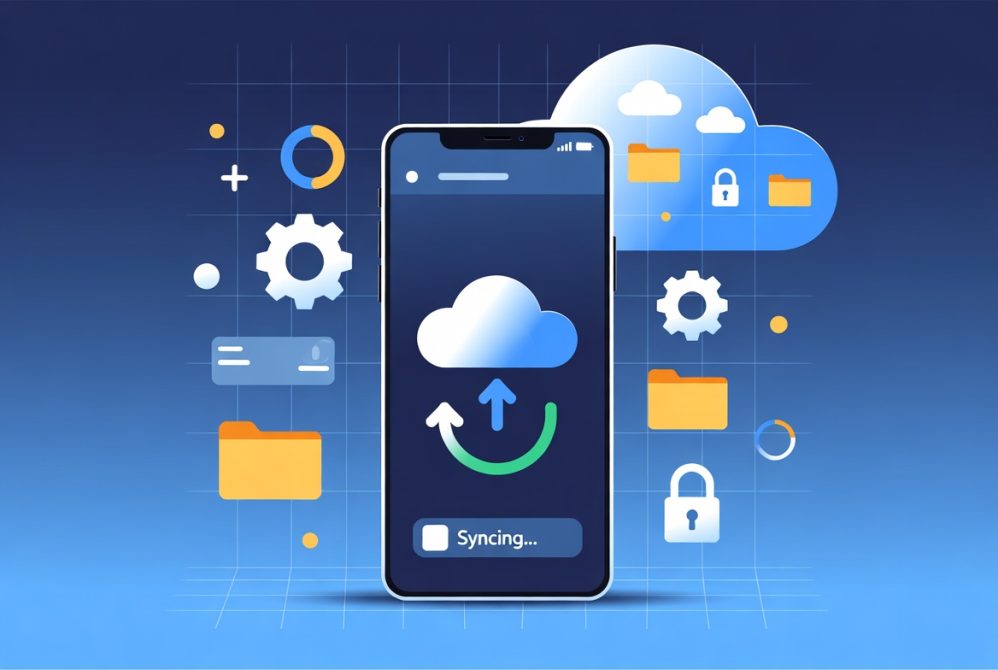
Backup ensures data safety in case of loss or damage.
📌✔ Bullet Point: Backup Features:
- Google Drive backup
- Automatic photo sync
- Contact syncing
📘 Detailed Explanation:
Backup protects against accidental deletion or device failure.
Cloud sync keeps your data updated in real-time.
It is essential for business users and content creators.
Without backup, data recovery becomes extremely difficult.
⚙️📡 Step 9: System Updates Installation
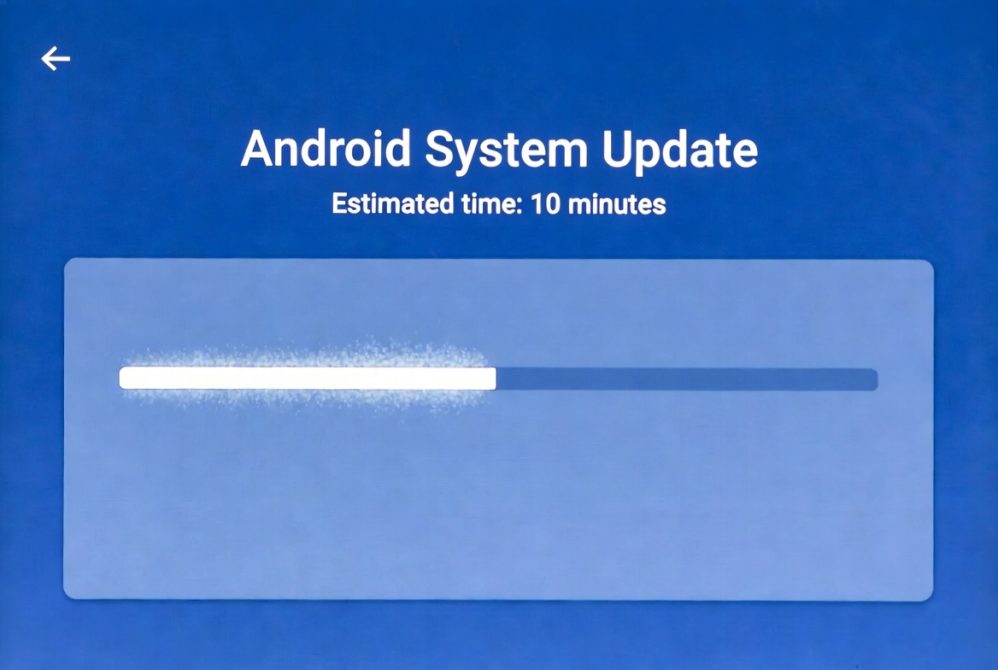
Updating your system improves performance and security.
📌✔ Bullet Point: Update Benefits:
- Security patch updates
- Bug fixes
- Performance improvements
📘 Detailed Explanation:
System updates fix vulnerabilities that hackers may exploit.
They also improve battery efficiency and speed.
Skipping updates can lead to software instability.
Manufacturers regularly release updates to enhance user experience.
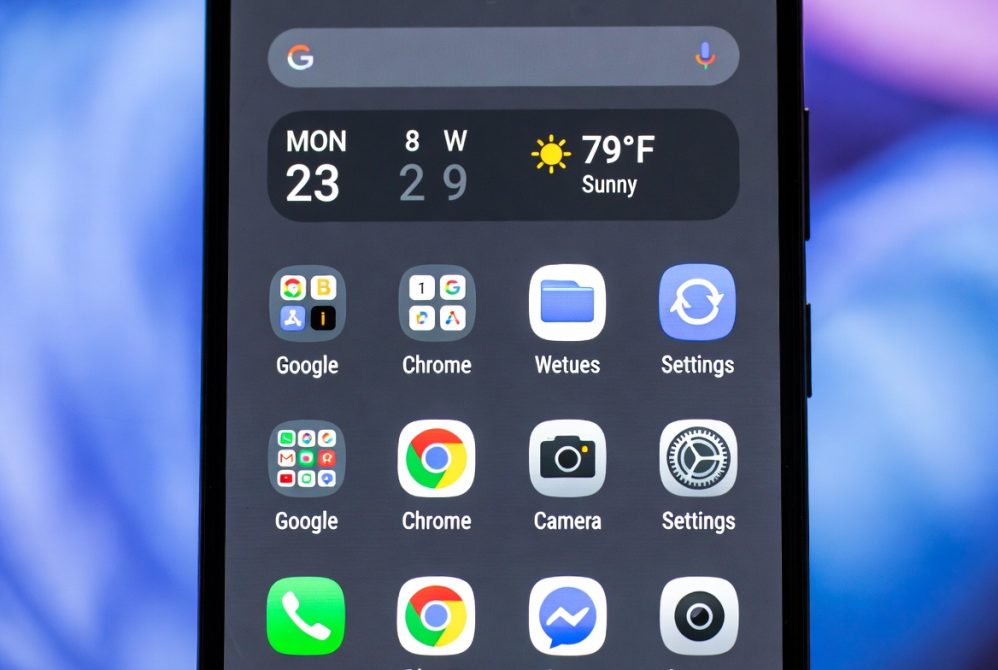
📱🎨 Step 10: Customize Home Screen
Personalization improves usability.
📌✔ Bullet Point: Customization Options:
- Wallpaper change
- App arrangement
- Widgets setup
📘 Detailed Explanation:
Customization allows users to create a personalized interface.
Widgets provide quick access to important tools like weather and calendar.
A well-organized home screen improves productivity.
🔋⚡ Step 11: Battery Optimization Settings
Battery performance directly affects user experience.
📌✔ Bullet Point: Optimization Methods:
- Enable dark mode
- Reduce background apps
- Lower screen brightness
📘 Detailed Explanation:
Battery optimization extends usage time and reduces charging frequency.
Background apps consume hidden power even when not in use.
Dark mode reduces screen energy consumption on OLED displays.
🔐🧠 Step 12: Privacy Settings Configuration
Privacy protection is essential in modern smartphones.
📌✔ Bullet Point: Privacy Controls:
- App permissions control
- Location access settings
- Microphone and camera control
📘 Detailed Explanation:
Privacy settings prevent unauthorized access to sensitive data.
Only trusted apps should be granted permissions.
This reduces risk of spyware or data leaks.
🧩📊 Step 13: Install Essential Apps
📌✔ Bullet Point: Must-have Apps:
- Messaging apps
- Browser apps
- Maps and navigation
- Email applications
📘 Detailed Explanation:
Essential apps improve daily productivity and communication.
They allow users to navigate, communicate, and work efficiently.
Only install apps from trusted sources for security.
🏁📱 Conclusion
Setting up a new Android phone is a structured process that includes security, optimization, customization, and data management.
When done correctly, your device becomes:
- Secure 🔐
- Fast ⚡
- Efficient 📊
- Fully personalized 🎨
A properly configured Android device ensures long-term performance and better user experience.
❓📌 Frequently Asked Questions (FAQs)
❓ 1. Do I need a Google account to use Android?
Yes, it is required for full functionality like Play Store and backup services.
❓ 2. Can I skip WiFi during setup?
Yes, but it is not recommended because updates and activation require internet.
❓ 3. How long does Android setup take?
Usually between 10 to 30 minutes depending on data transfer.
❓ 4. Is it safe to restore data from old phone?
Yes, if done through official Google backup or secure transfer tools.
❓ 5. What is the best security option?
Fingerprint combined with PIN is the most secure option.